Are you tired of the Telegram app in Windows wasting your screen space? Me too. It’s ridiculous that this app keeps chat bubbles spanned as if we were using a small phone. The app is literally made for Windows. Here, I show how we can modify the variables in memory to fix this.
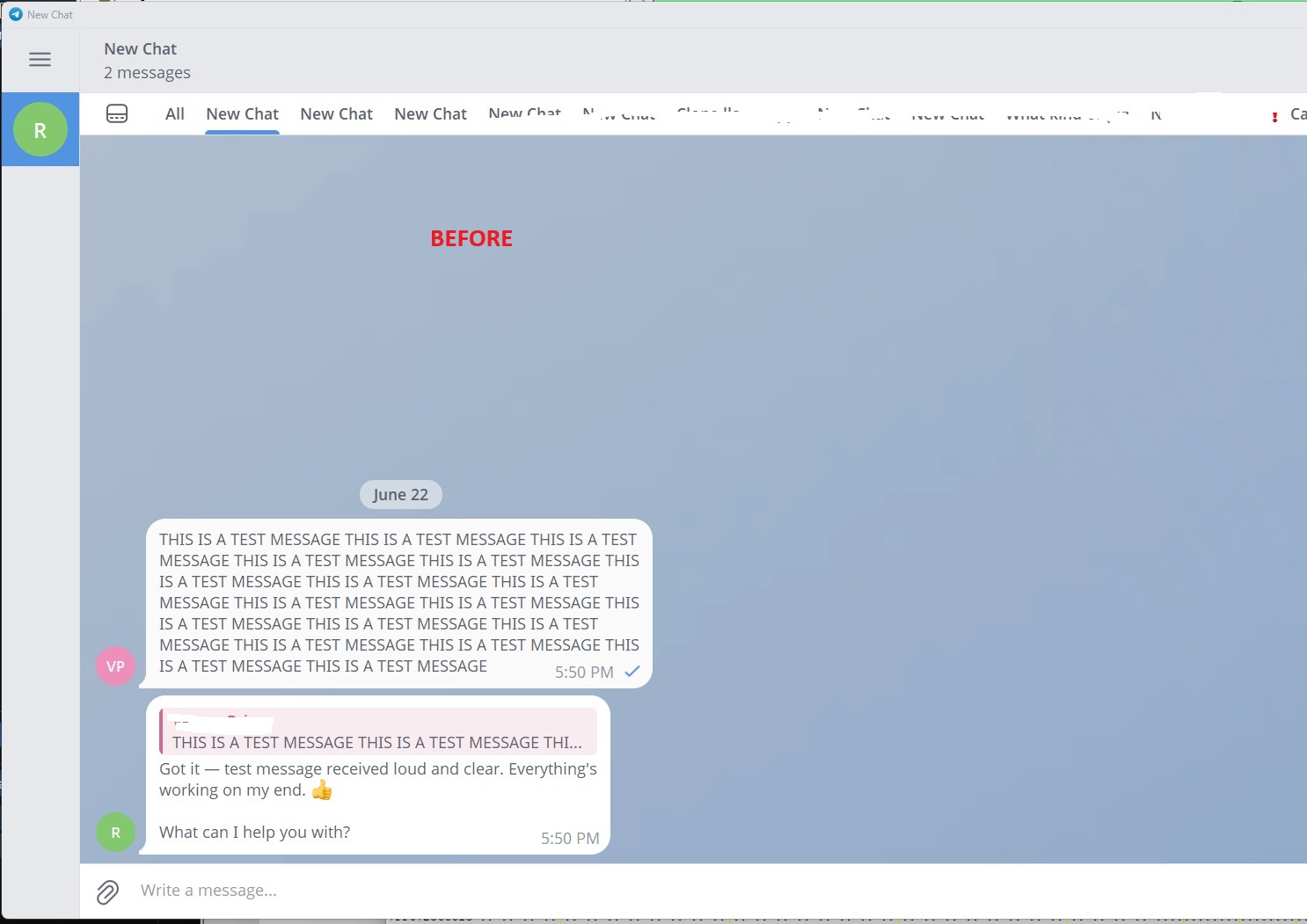
Before the fix this is what normal chat bubbles look like, notice all the empty space.
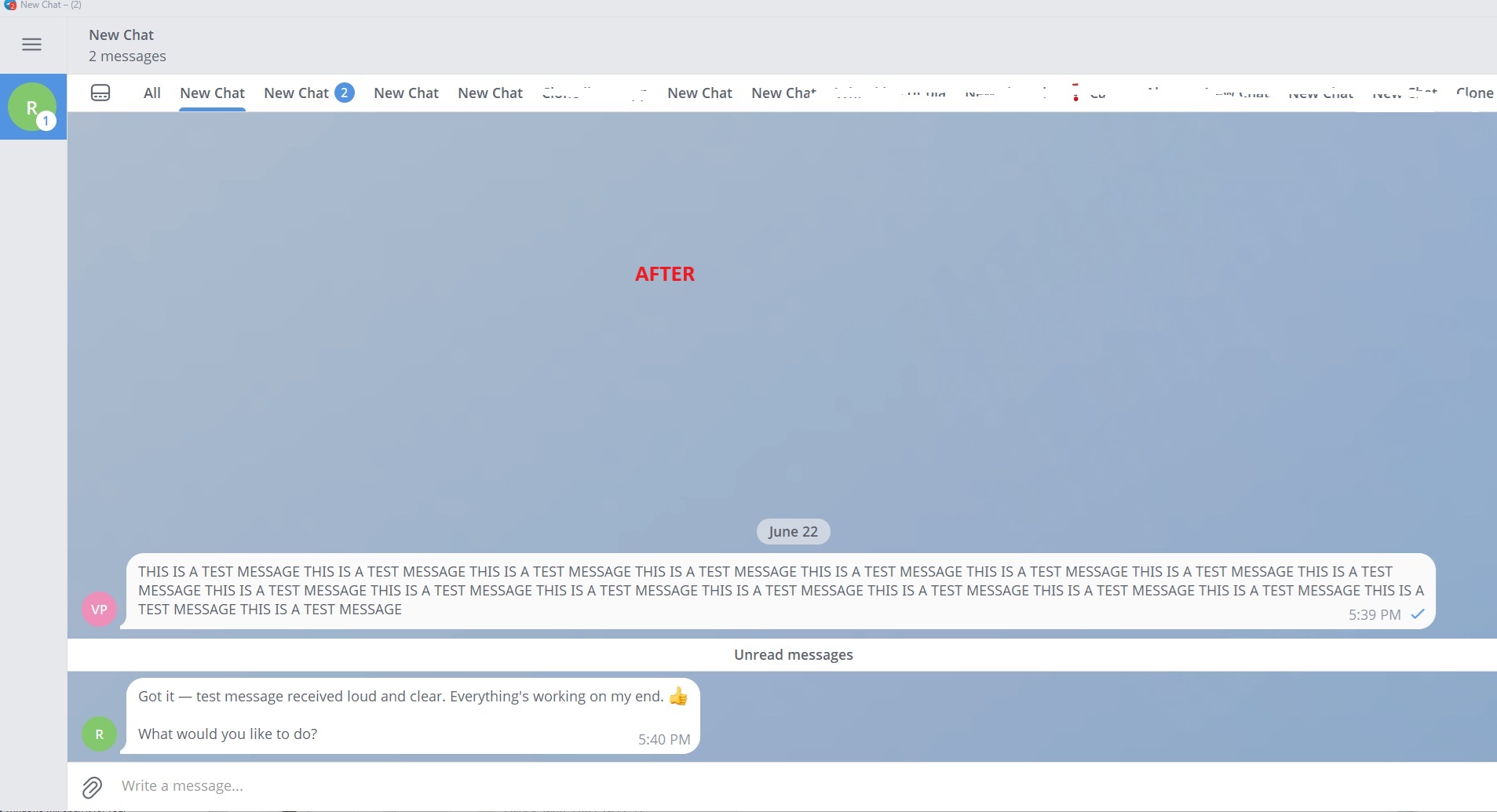
After the fix, notice the chat bubbles extend farther; 1200 pixels in this case.
You have 2 options on how to do this:
- Use the python script I had an LLM write for this (I tested and it works fine).
- Patch the .EXE manually with the instructions I wrote below.
OPTION A – DOWNLOAD THE SCRIPT AND RUN IT
You can download the python script here
Instructions: https://github.com/vektorprime/telegram-chat-bubble-fix/tree/master
Script: https://github.com/vektorprime/telegram-chat-bubble-fix/blob/master/telegram_bubble_patcher.py
Double click the script and it will run with Python, then just choose your desired chat bubble size.
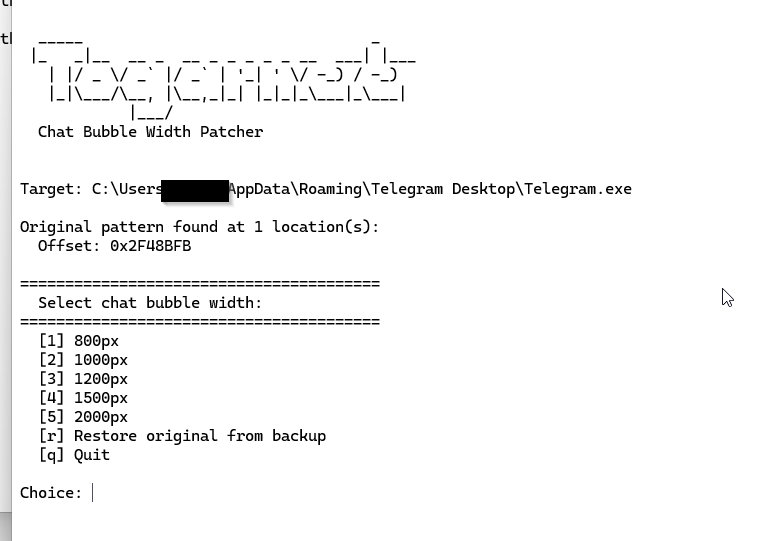
If double clicking the script fails you can try to run it through the terminal you can browse to the folder with Command Prompt (not powershell) and run “python3 telegram bubble_patcher.py”
That’s it, you do NOT need to do option B.
OPTION B – APPLY THE THE PATCH YOURSELF WITH NO SCRIPT
If you want to apply the patch to the EXE here’s how.
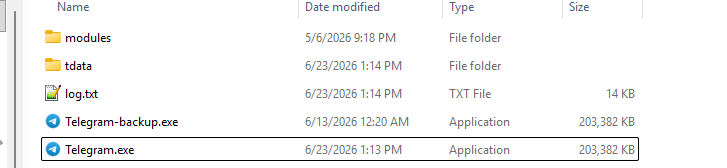
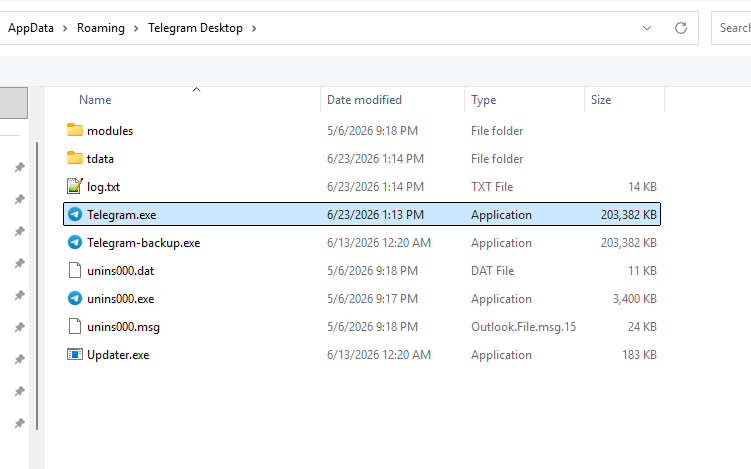
Browse to the Telegram folder at C:\Users\yourusername\AppData\Roaming\Telegram Desktop”
Copy Telegram.exe somewhere and save it as Telegram-backup.exe
Download ImHex or another HEX editing program. ImHex is free and opensource.
Github page for ImHex:
https://github.com/WerWolv/ImHex/releases
Direct link to the portable version from their GitHub:
https://github.com/WerWolv/ImHex/releases/download/v1.38.1/imhex-1.38.1-Windows-Portable-x86_64.zip
Direct link to the installer version from their GitHub:
https://github.com/WerWolv/ImHex/releases/download/v1.38.1/imhex-1.38.1-Windows-x86_64.msi
Once you have that launch it and browse to Telegram.exe
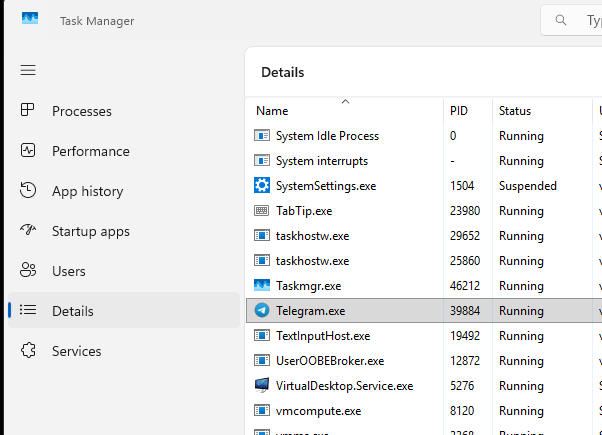
Before you begin make sure Telegram.exe is not running, it likes to run in the background. Open Task Manager (CTRL + SHIT + ESC) and close it.
Right click the process | End Task
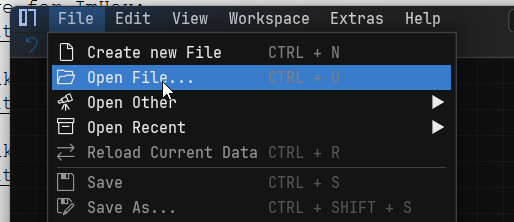
Now open ImHex and browse to File | Open File…
Open Telegram.exe since that’s the one that gets launched from shortcuts.
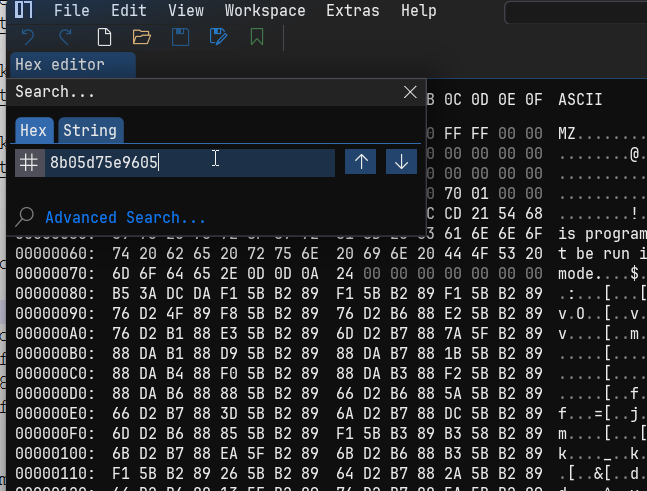
Do a search for this HEX sequence: 8b05d75e9605
File | Search (or press CTRL + F)
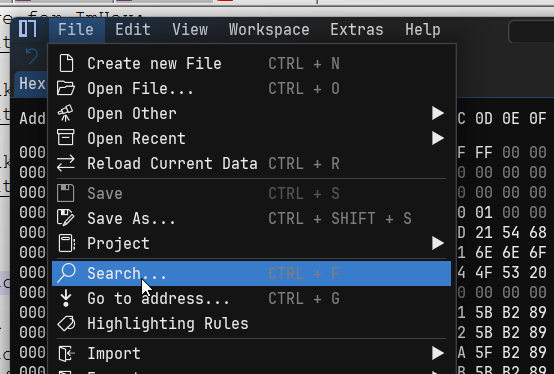
Paste the values and hit enter
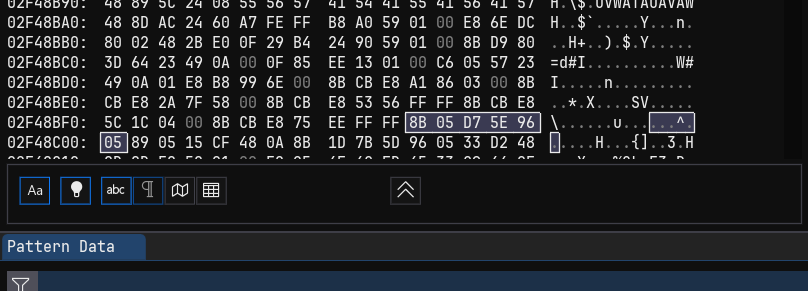
It will be found here
Now you need to choose your chat width, here are some values that you will use to replace the values you found.
B8 20 03 00 00 90 <– 800px width
B8 E8 03 00 00 90 <– 1000px width
B8 B0 04 00 00 90 <– 1200px width
B8 DC 05 00 00 90 <– 1500px width
B8 D0 07 00 00 90 <– 2000px width
I will use the 1200px values – B8 B0 04 00 00 90
Press on the 8B and hit enter, that will start overwriting. Start typing one of the values above. No need to hit enter or anything, just type.
Here I chose 1200px, once I got to the 89 I just hit enter to stop.
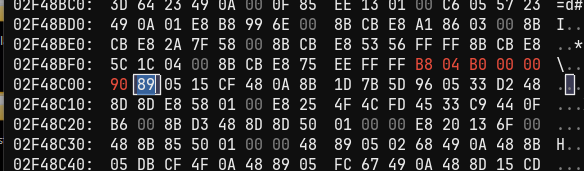
If you make a mistake you can just press CTRL + Z to undo or just close the app without saving and relaunch.
Once you’re done with the above changes go to File | Save (or press CTRL + S).
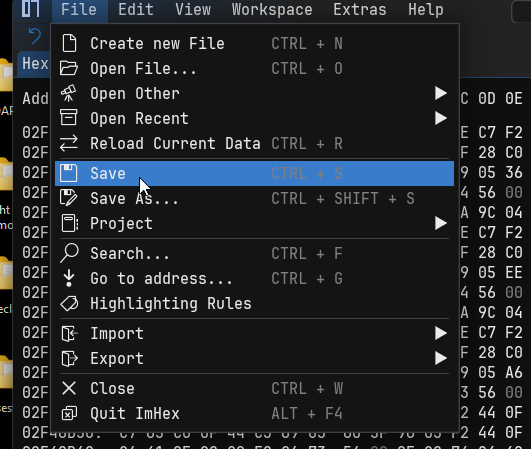
If you get any prompts from ImHex about saving the project, you don’t need to do that. Pressing the Save from the screenshot above is enough, just close ImHex without saving the project.
Now launch Telegram and enjoy the chat bubble real estate!

Note I ended up going back and editing my install to 1500px since that was a much better value for ultra wide.
Unnecessary technical notes:
You do NOT need to do this, this is purely here for informational purposes. You can also edit the memory location where this value is stored with some live memory editor like cheat engine or X64DBG. Those changes will only live as long as the program is active. Closing and re-launching the program removes them. The address to modify for that is Telegram.exe + D3D651C.
How does the operation work?
The original 8B op is for moving a value from memory or another register into the EAX register
The B8 op is to move a literal value into the EAX register.
The next 4 bytes are for the integer to use. E.g. for 1000 – 00 00 03 E8 is 1000 but you see it in big endian as E8 03 00 00 in the file (reversed).
90 is a NOP (no operation), just padding. So we don’t have to re-align the EXE (we need to replace 6 bytes with 6 other bytes)
This works because the next op (not shown) copies the contents of EAX into the memory location where all functions later read from.